GPT Image 2.5 is here: create images with transparent backgrounds

AI video generator

Turn an idea or still image into a video clip for product showcases, social content and creative pitches

Try a description like this

How to generate a video from text or images

1

Describe a scene or add frame images

Write the subject, action, setting and camera movement. Add a product photo or concept image as the start frame, or an end frame to guide the final view.

2

Choose settings and generate

Select a model, duration and resolution. Choose an aspect ratio for text-to-video; with frame images, the canvas follows the image. Then start generating.

3

Preview your clip and download

Track progress in My creations. Play the finished video and download it for editing or publishing.
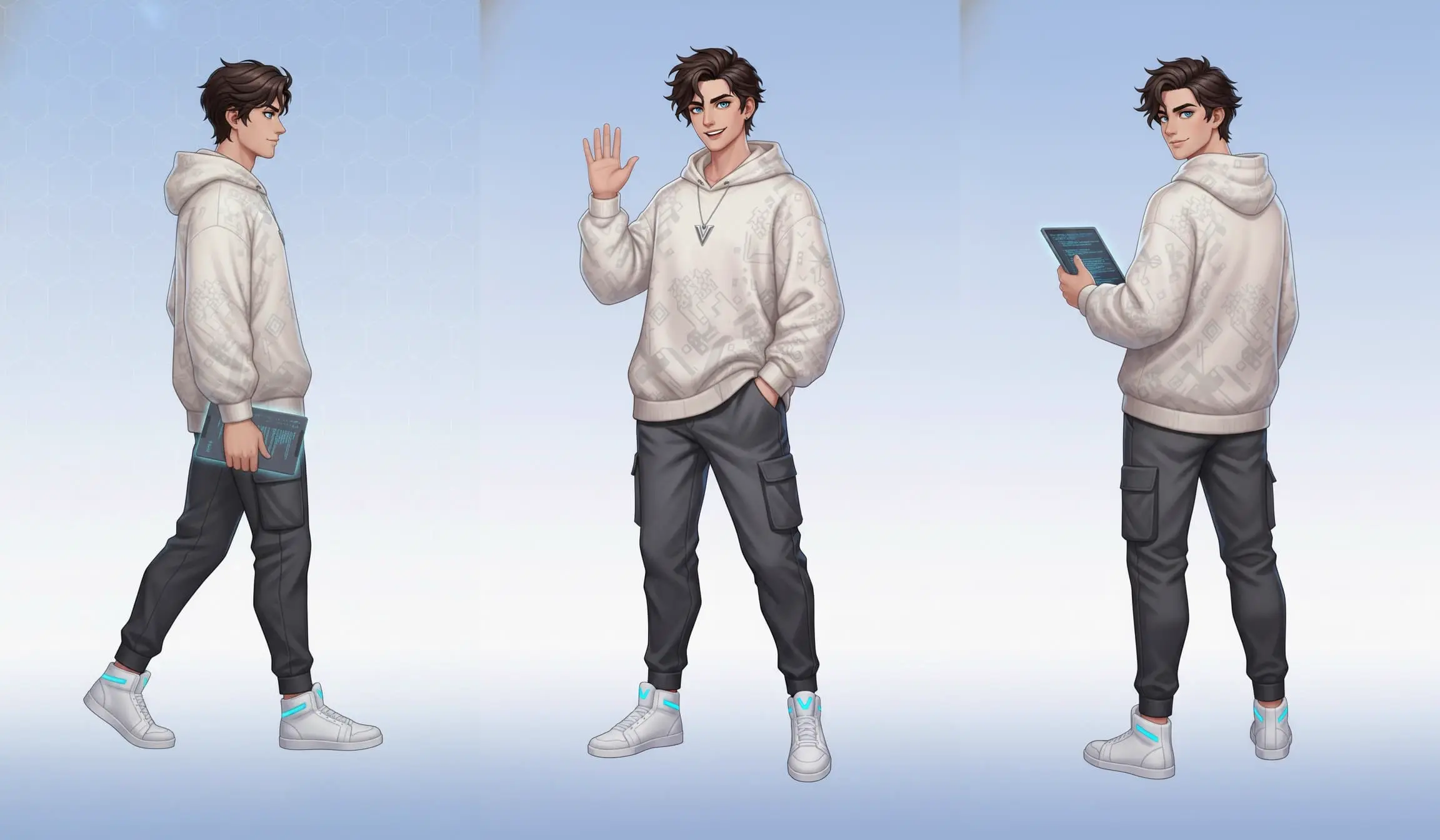
Character walking, waving and turning in a motion concept illustration

Bring a still subject into motion

Use a portrait, product photo or character image as the start frame and describe the action. Add an optional end frame to guide the closing view of the same clip.
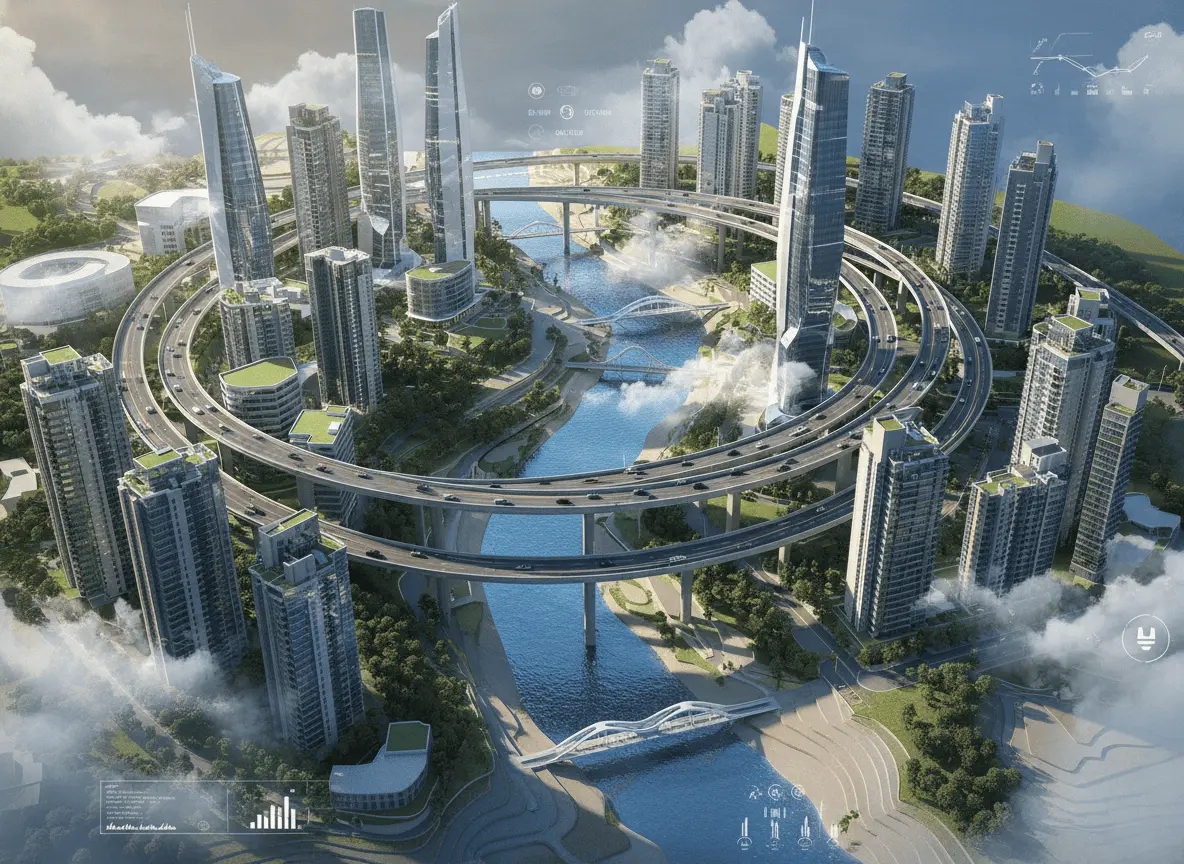
Futuristic city surrounded by clouds, shown as a scene concept

Build scenes from a text prompt

Start without a reference image. Describe a city, landscape, lighting and movement to create footage for Reels, YouTube Shorts or a storyboard.
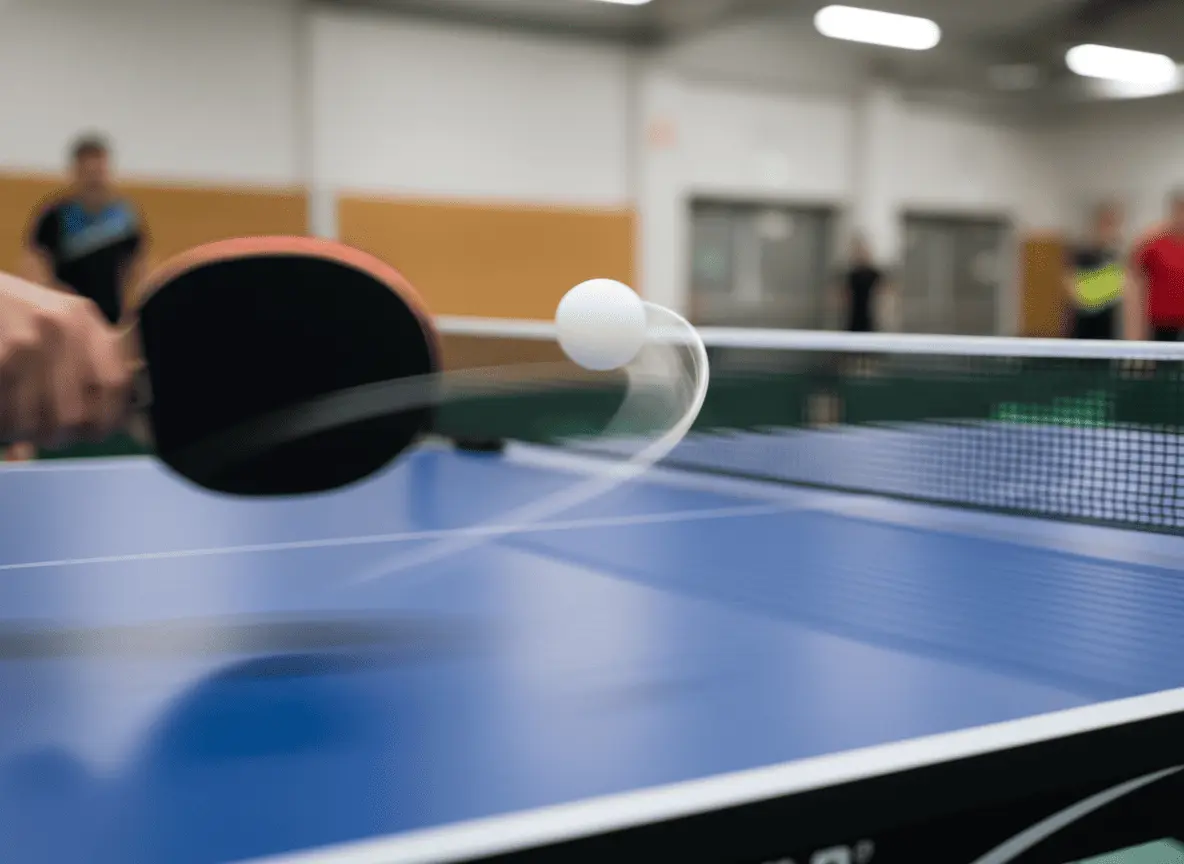
Table tennis ball trajectory and a close-up camera concept

Describe how the camera should move

Try a slow push-in, a tracking shot or a pull-back from a close-up. Build each clip around one main action for clearer pacing.
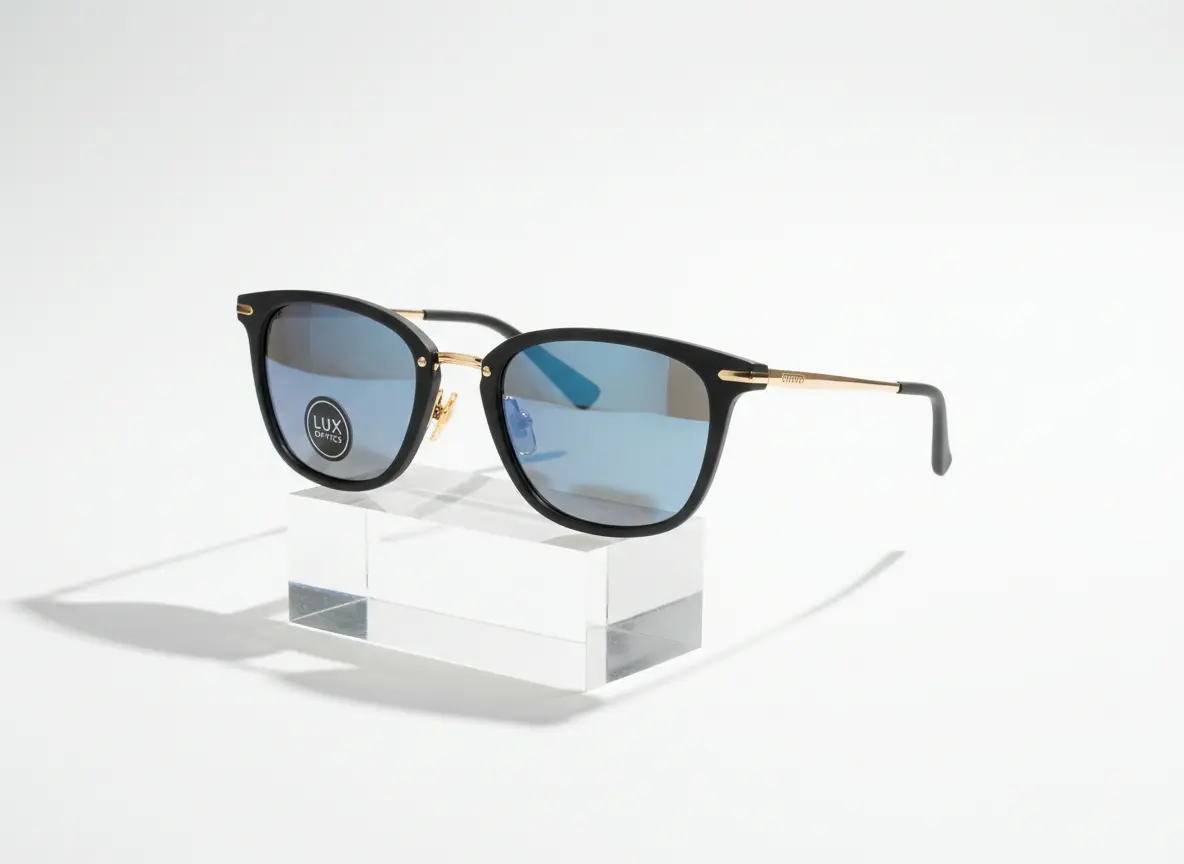
Sunglasses on a transparent display stand in a product concept image

Create clips for product showcases

Start with a product photo and describe the lighting, setting and movement for a launch teaser or product introduction. The photo becomes the first frame, so a single image is enough to generate a motion clip.
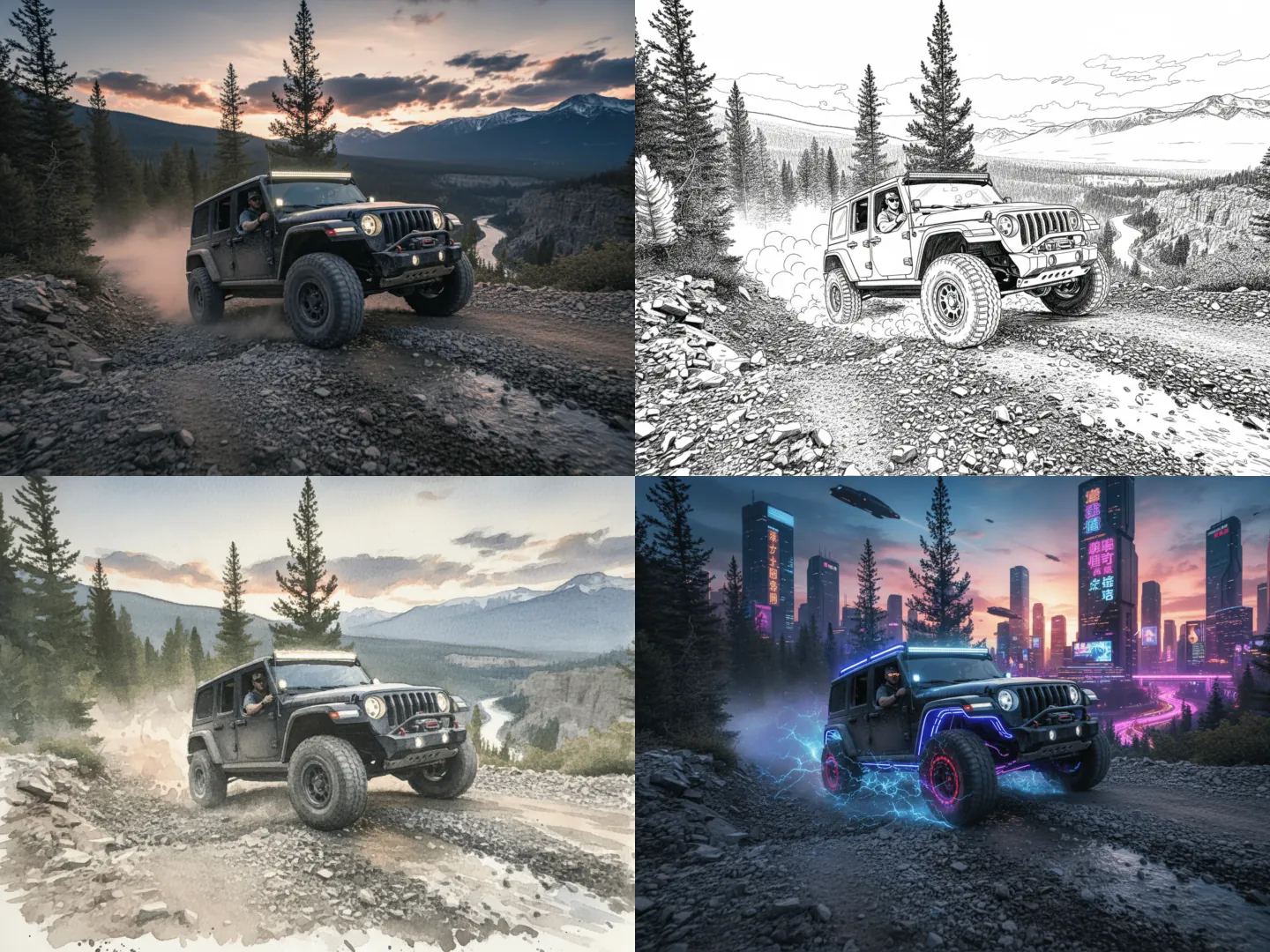
An off-road vehicle shown in realistic, sketch and neon visual styles

Explore different visual styles

Try realistic, illustrated or cinematic descriptions for the same idea. Generate a few clips and pick the style you like best.

What would you like to do next?

Frequently asked questions

Yes. Start with a text prompt alone, or add a start frame, an end frame or both and describe the motion and setting. Frame images guide one clip; they are not a batch of separate videos.

Current video options offer 5–15 seconds and 480P, 768P or 1080P. Available choices depend on the selected model and the options shown. These are short clips; assemble longer videos in an editor after downloading.

Text-to-video offers ratios including 16:9, 9:16 and 1:1. With frame images, the canvas follows the image; if only an end frame is provided, it follows that frame.

Yes. Audio is generated together with the video and can include dialogue, sound effects and ambient sound, depending on your prompt and the scene. There is no separate voice track to control, and the audio cannot be replaced on its own.

Start with subject, action, setting and camera movement. For example: a blue cup on a wooden table, a slow camera push-in and soft side lighting. With a reference image, focus on the desired motion and keep the first attempt simple.

Credits vary with the model, duration and resolution. Failed tasks are not charged; generating another version is a new task.

When a product or portrait photo is your start or end frame, describe the appearance to keep, such as the product’s colors, logo and shape, or the person’s hairstyle and clothing. Simple, moderate motion keeps subject details steadier.