GPT Image 2.5 is here: create images with transparent backgrounds

AI image translator

Translate image text into your chosen language, preserve the original layout, and download the result
JPG, PNG, or WebP, up to 30 MB

How to translate text in an image

1

Choose a product image, poster, or screenshot

Choose an image with clearly readable text and sufficient resolution.

2

Choose the source and target languages

The source language can be detected automatically. Choose a target language and start translating.

3

Preview and download the translated image

Download the translated image to quickly prepare multilingual product pages, posters, and social media content.
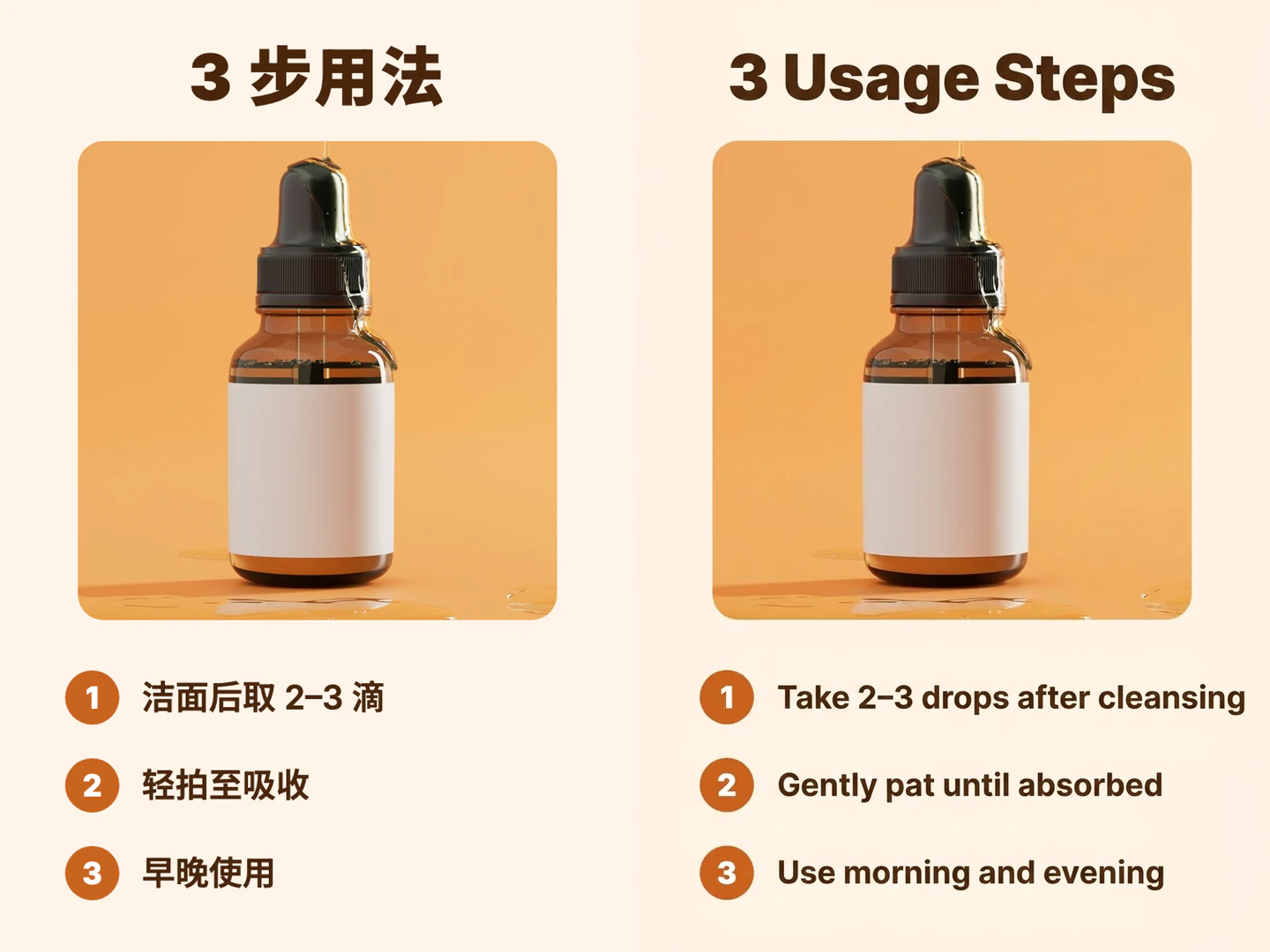
Before and after a three-step serum usage image is translated from Chinese into English

Translated text goes back in its original place

AI writes the translation back using the original image's text positions and layout as its reference, so you don't need to remake the image.
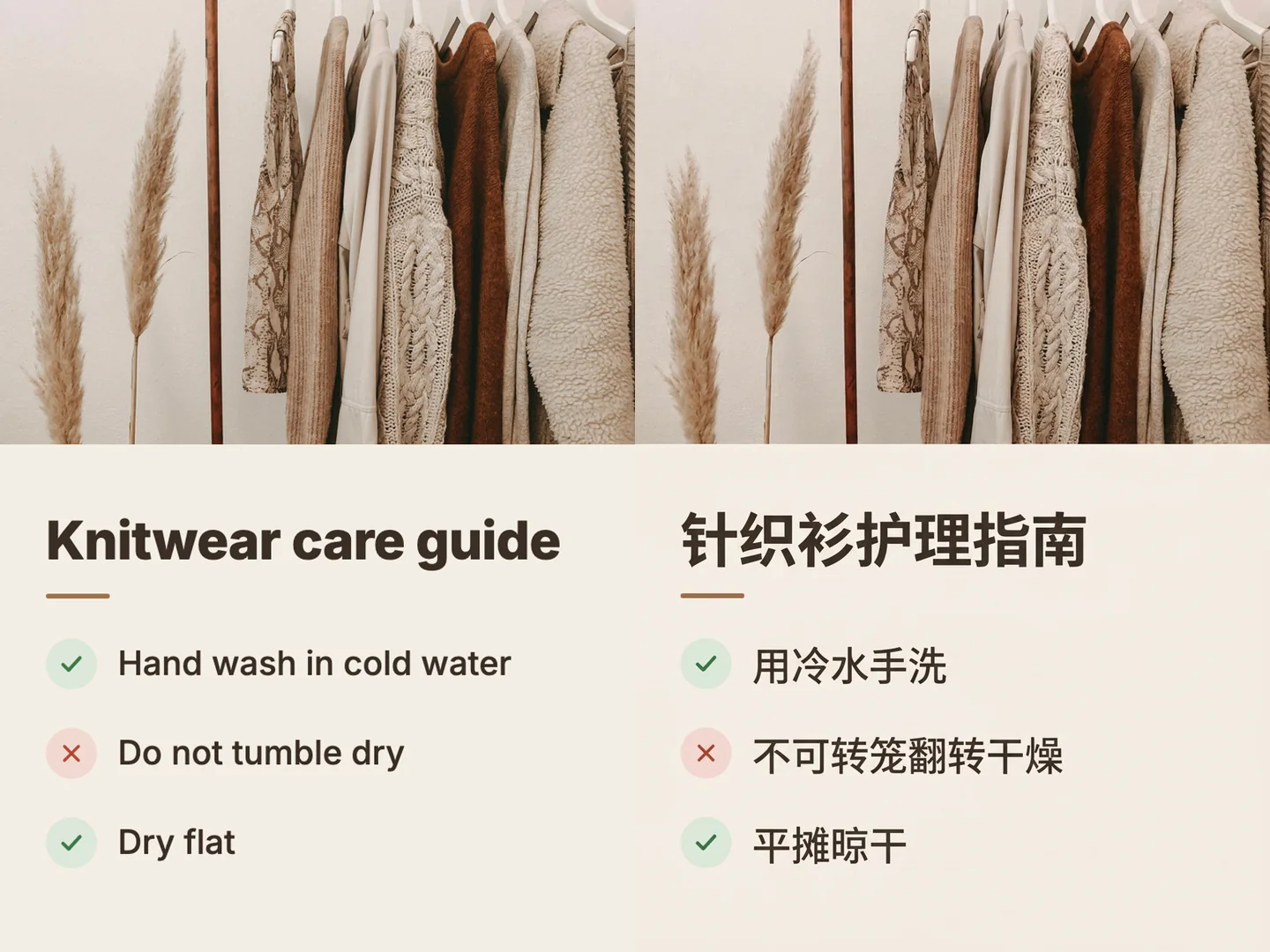
Before and after an English knitwear care guide is translated into Chinese

Understand foreign-language images at a glance

For posters, instructions, or screenshots in another language, choose the language you read as the target language to get a translated version of the image. This English knitwear care guide was translated into Chinese.
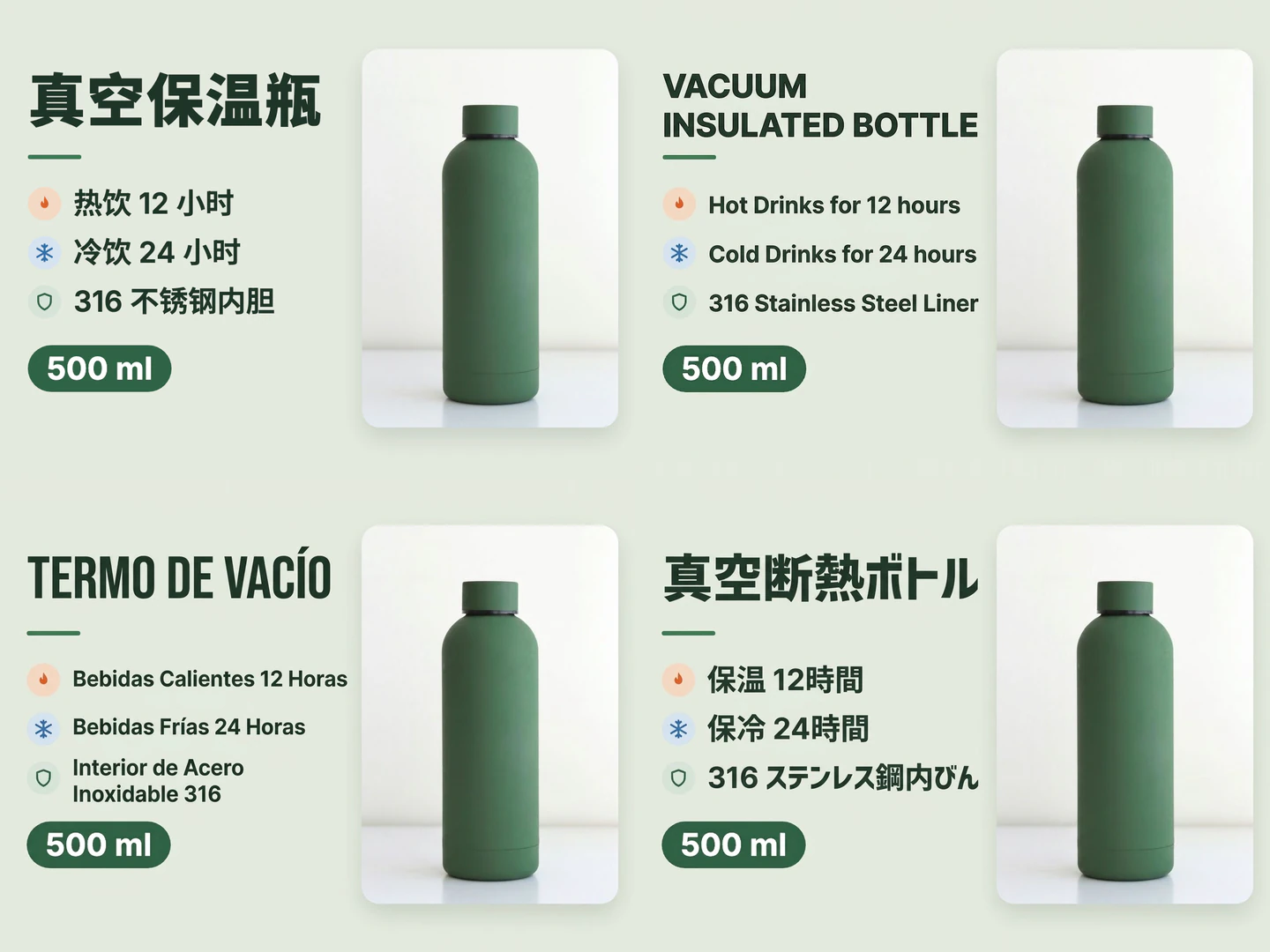
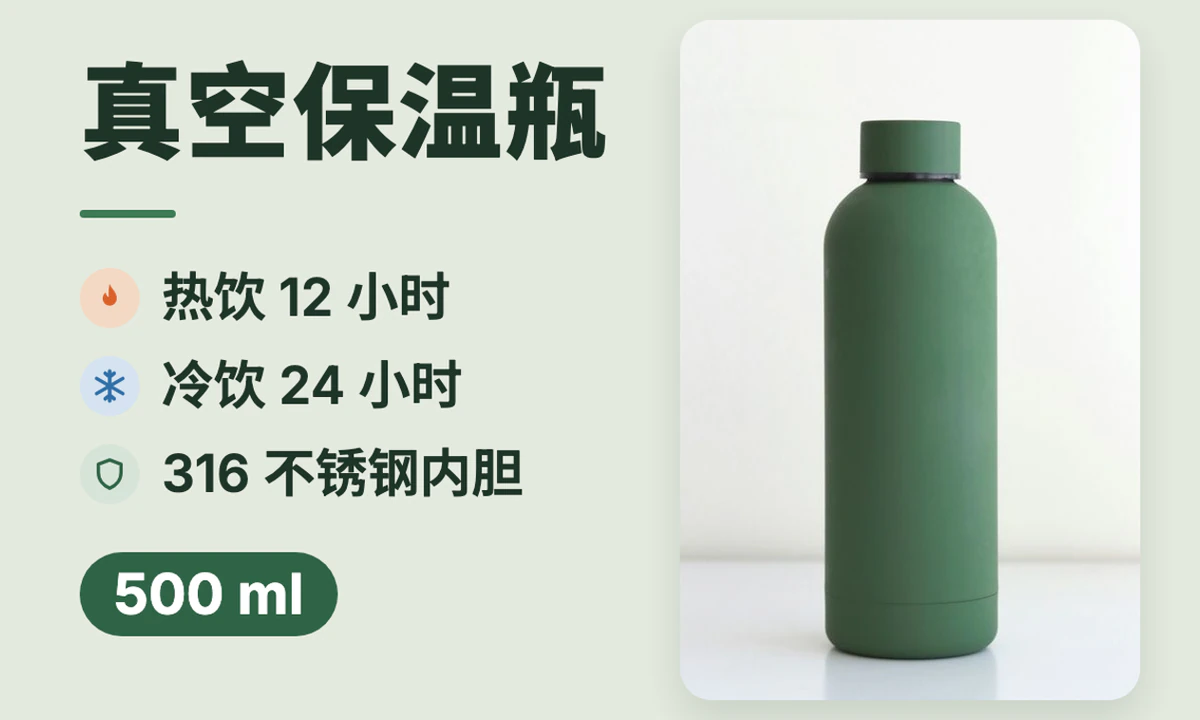
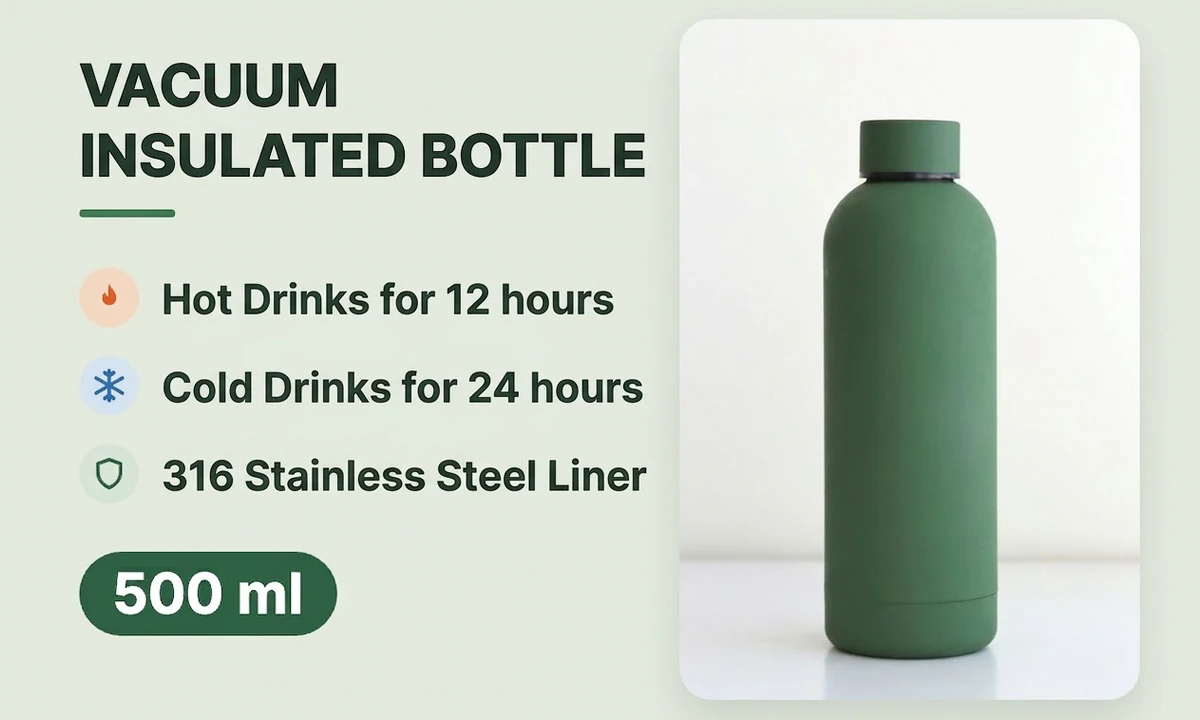
A Chinese insulated bottle image alongside its English, Spanish, and Japanese versions

Turn one product image into several language versions

Translate again with a different target language to get another language version. This Chinese insulated bottle image was translated into English, Spanish, and Japanese.

What would you like to do next?

Frequently asked questions

It returns a downloadable image with translated text. Editable text layers, Word export and PDF export are not currently available.

Yes. Choose English as the target language, or select another language from the list. The source language can be detected automatically.

AI writes the translation back using the original text positions, layout, type style, alignment and spacing as its reference. Output dimensions follow the source image’s proportions within the sizes the model supports. If the aspect ratio needs to change, you’ll see a note before you submit.

Yes. Upload one product image with clearly readable text. For very long images, dense text or complex layouts, split them into clear individual images so every piece of text is large and legible, then translate each one.

The tool currently processes one image and returns one translated image per submission. Batch translation and PDF translation are not available.

Image translation uses credits. The amount is based on the source image and the output size tier planned for the model. If a translation fails, your credits are refunded.