AI photo editor
Upload an image and describe what to change, from colors and objects to visual style
How to edit photos with AI
Choose the photo you want to edit
Add a base image. To reference a color, object, or style, add reference images within the limit of your selected model.
Describe what to change and keep
For example, “Remove the street sign in the background, keeping the person and composition.” Choose an aspect ratio, then generate.
Preview and download the result
Download the version you like. To keep refining, use the result as a new base image and continue editing from that version.
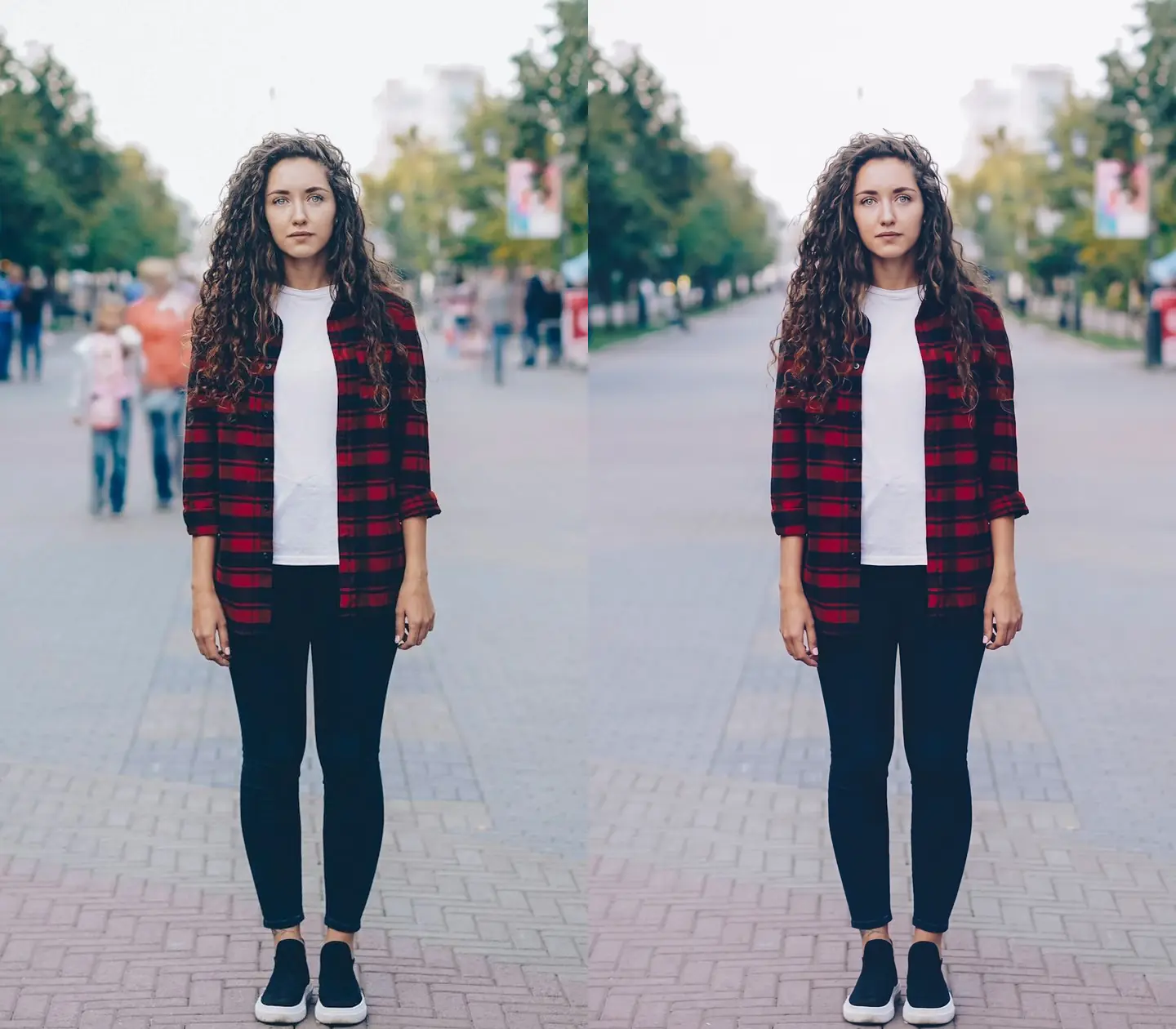
Remove passersby and clutter with a few words
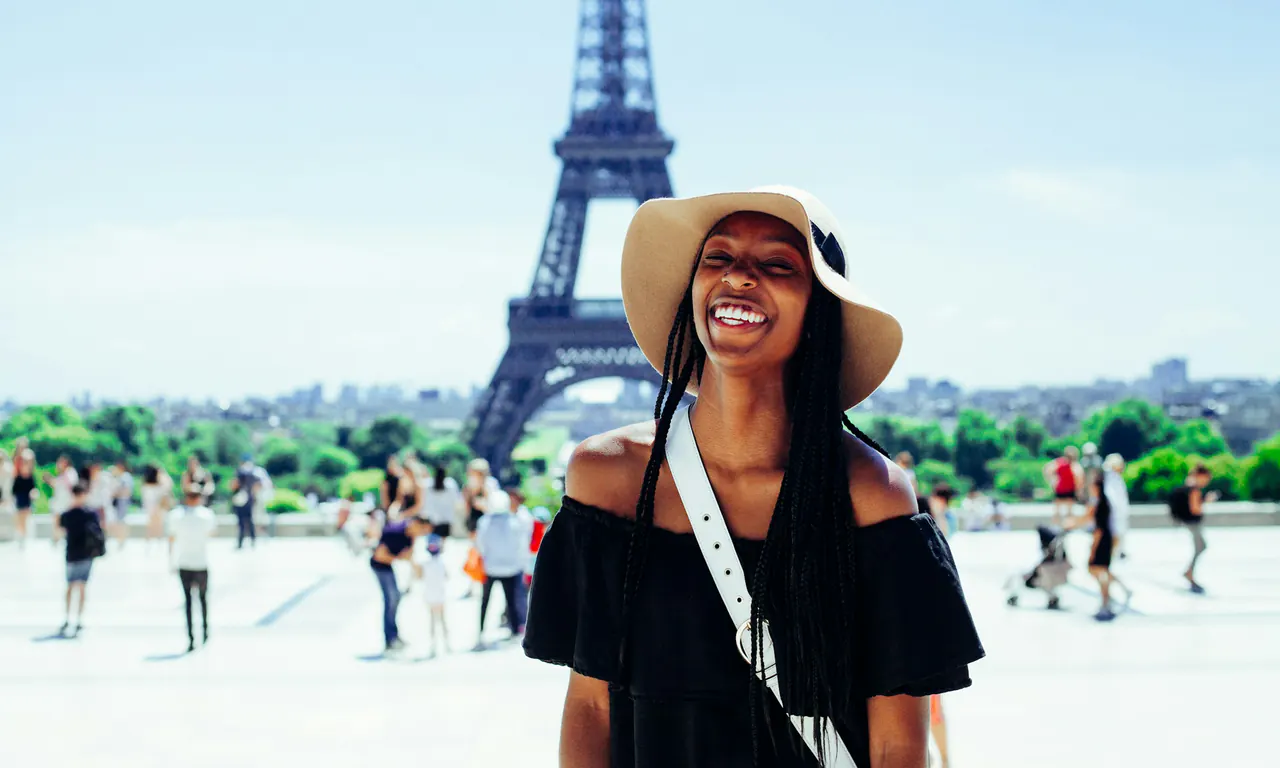
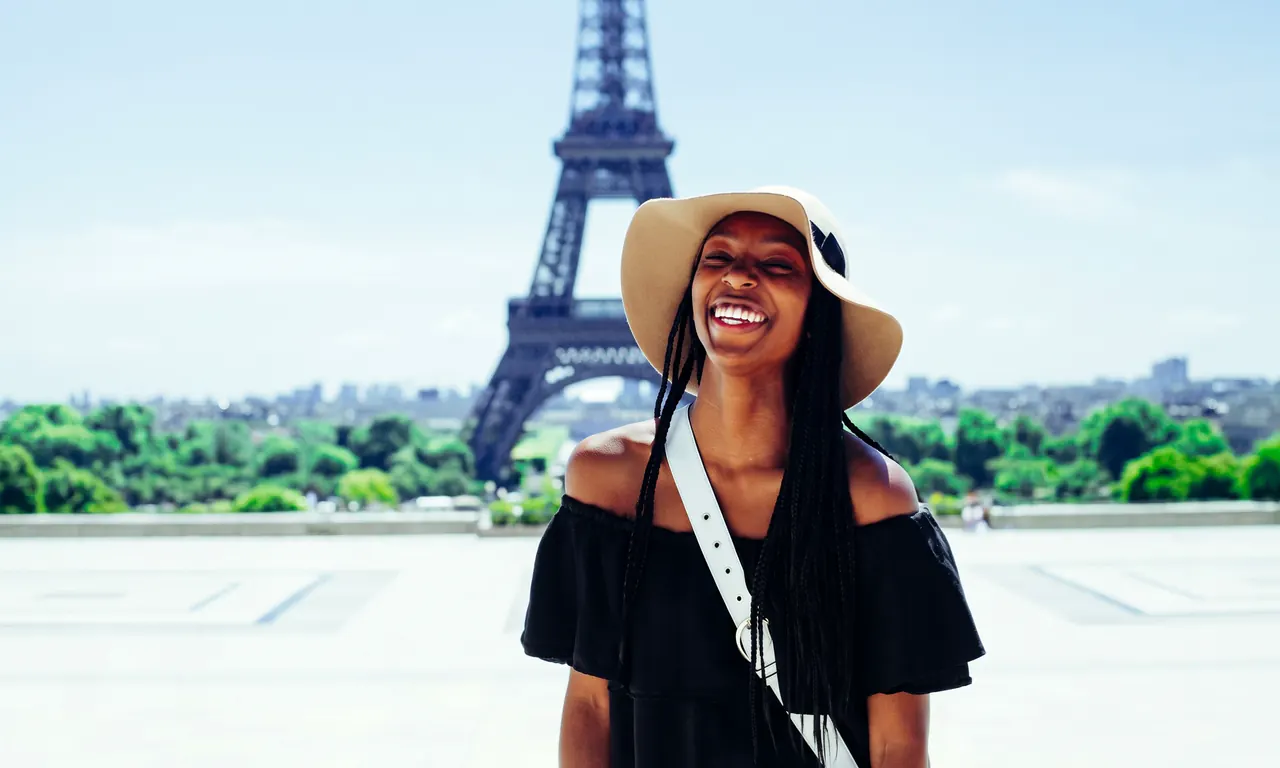
Is your travel photo crowded with tourists, or is there someone or something unwanted in the background? Just type “Remove the people in the back” and AI removes them and redraws that part of the background as instructed, with no manual selection or brushing.
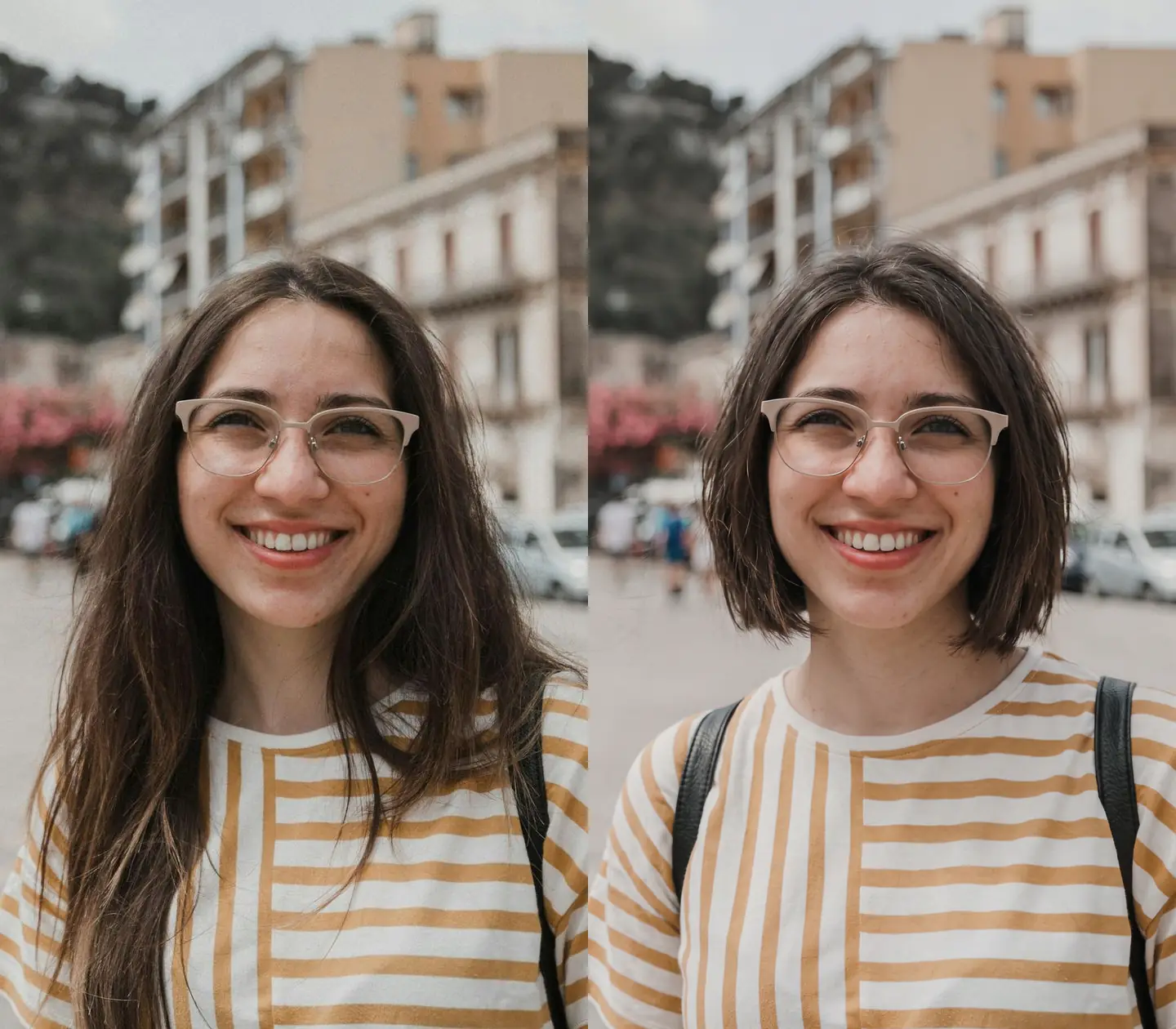
Change hairstyles, expressions, and other portrait details
Describe the change you want, such as “Give her a chin-length bob,” and mention the facial features and expression to keep. Try a new hairstyle or expression with a single sentence.
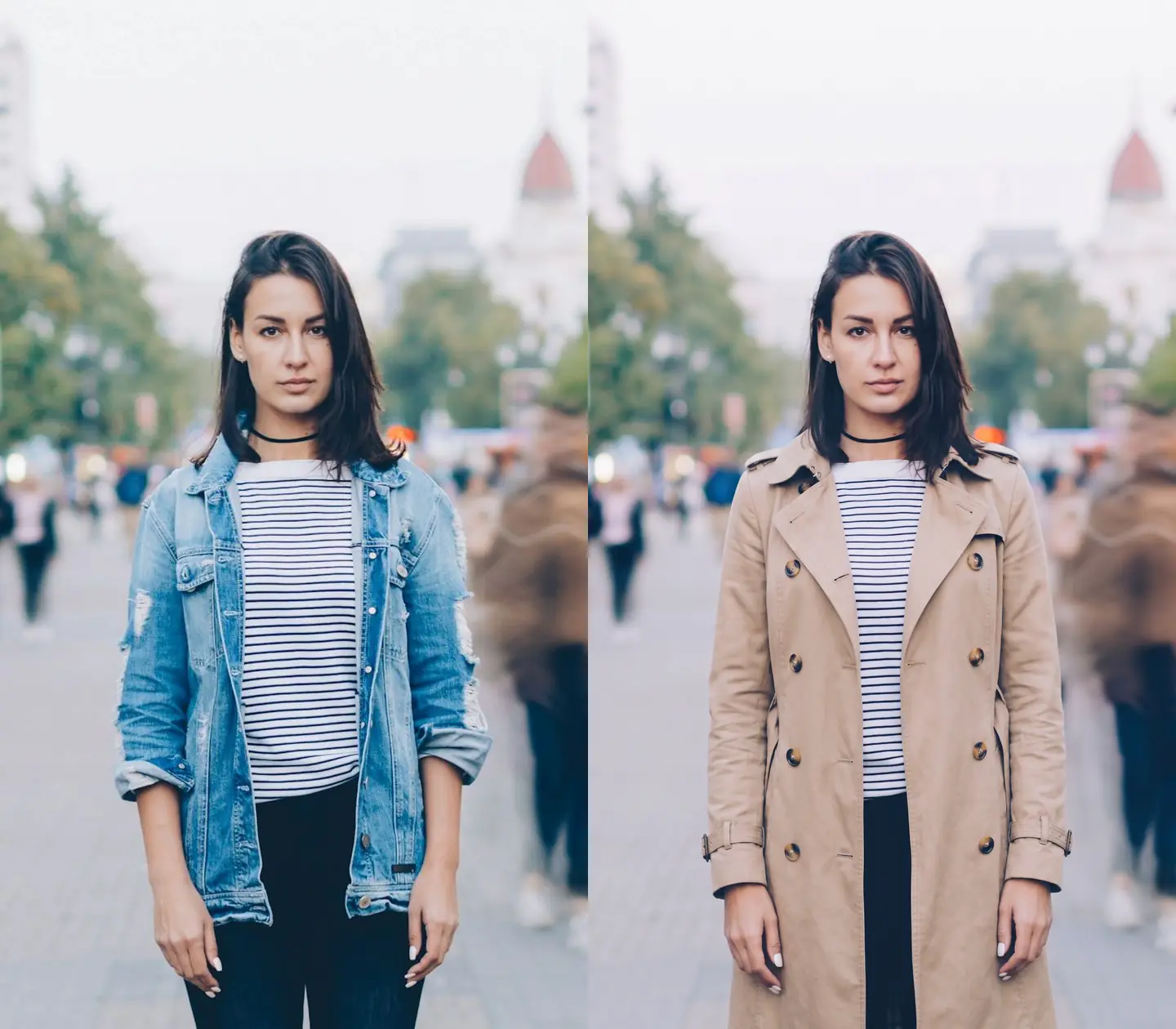
Change outfits without a reshoot
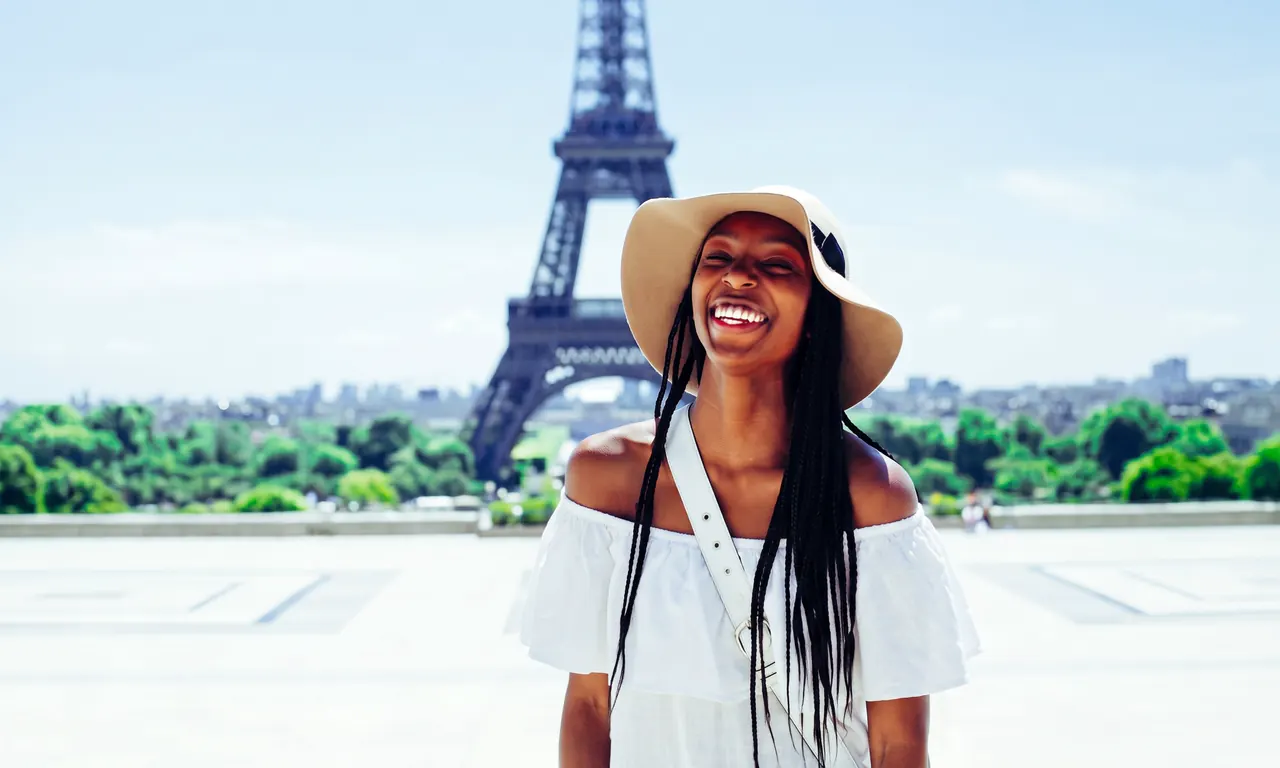
Specify the style and color you want, for example “Change the denim jacket to a beige trench coat,” and quickly see how different outfits look.
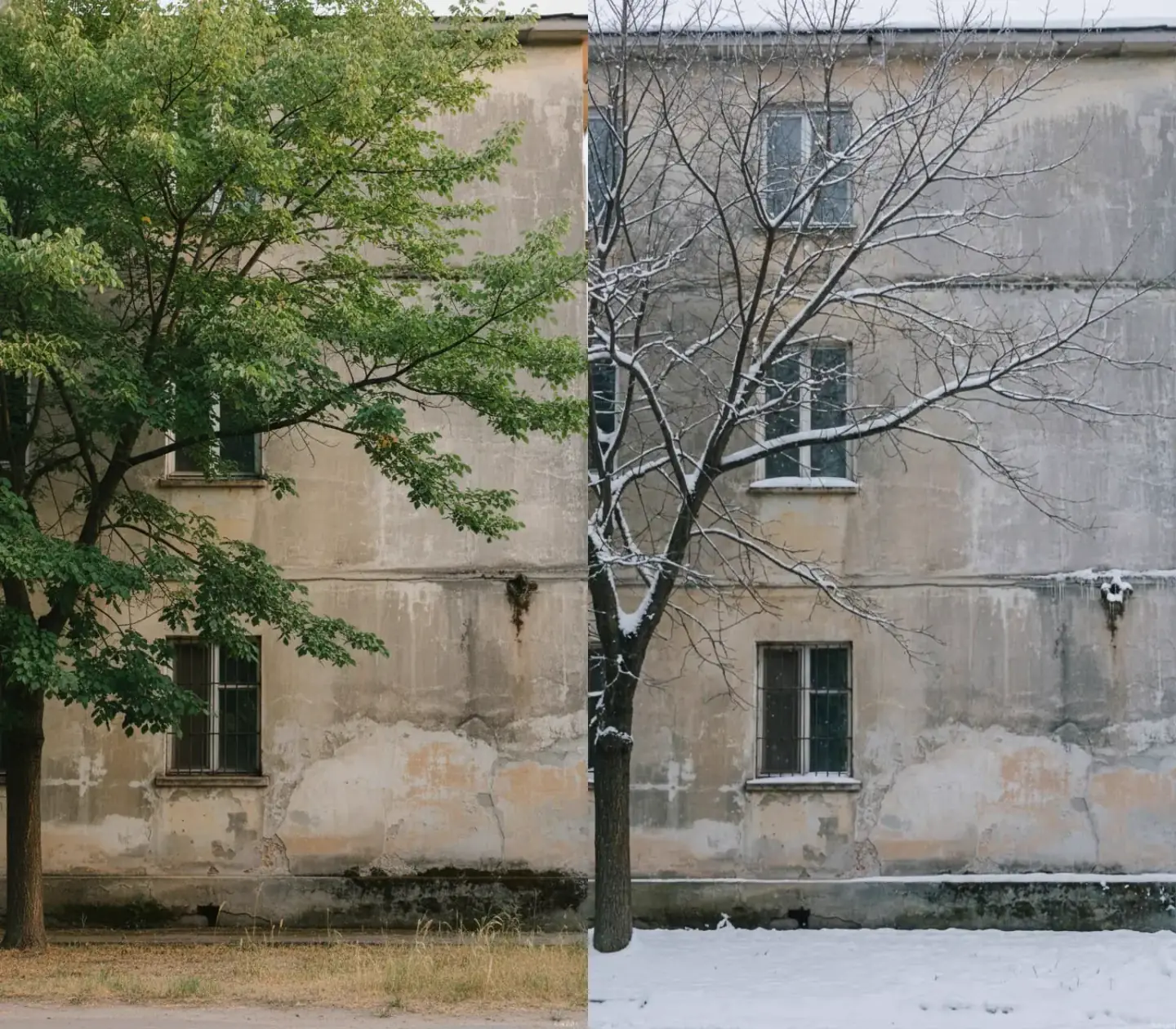
Explain the details you want to edit
Specify the color, season, or detail to change and the subject to keep. Tell AI in plain words what to change and what to keep, with no manual selection needed.
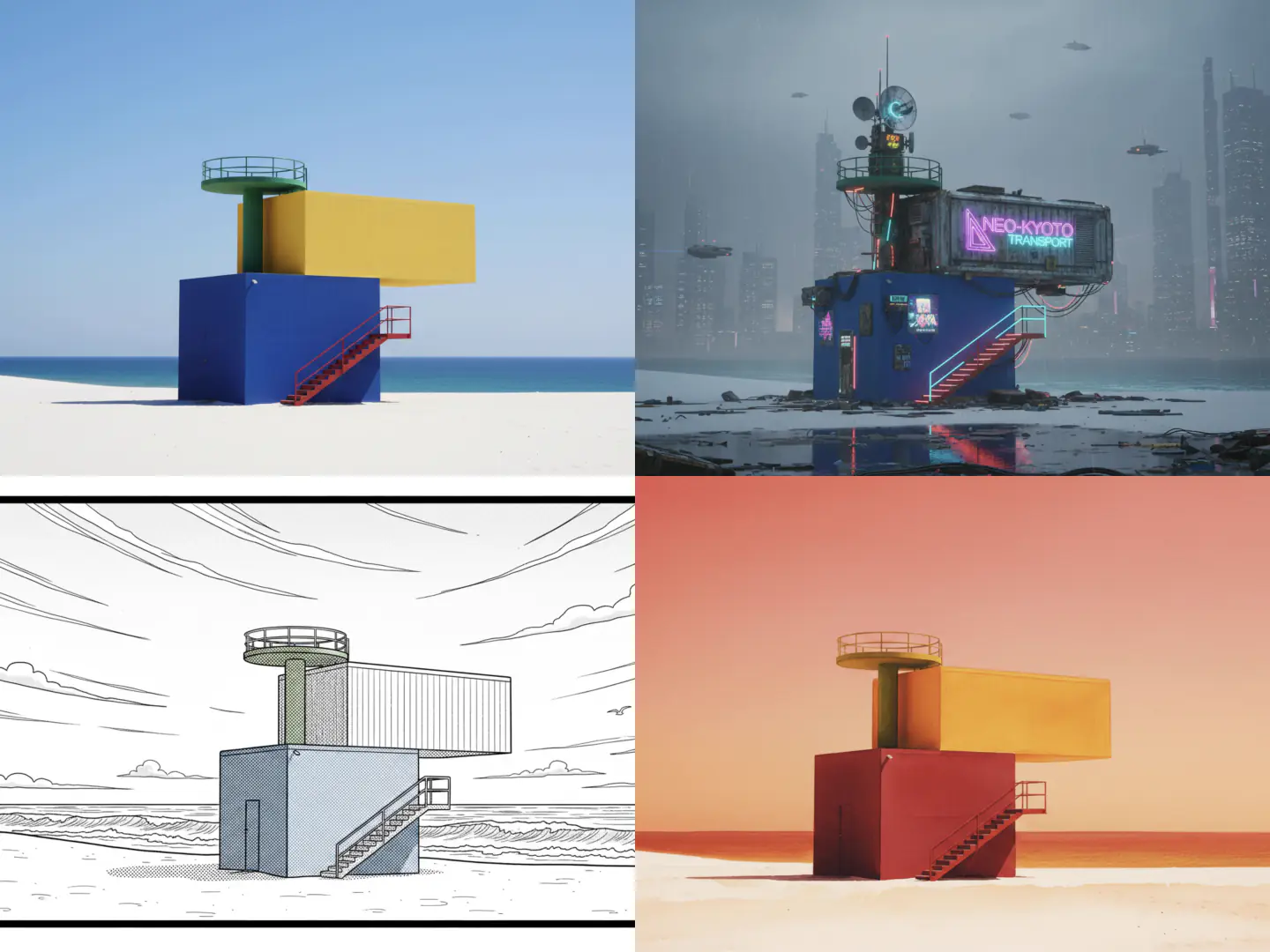
Try different styles with the same photo
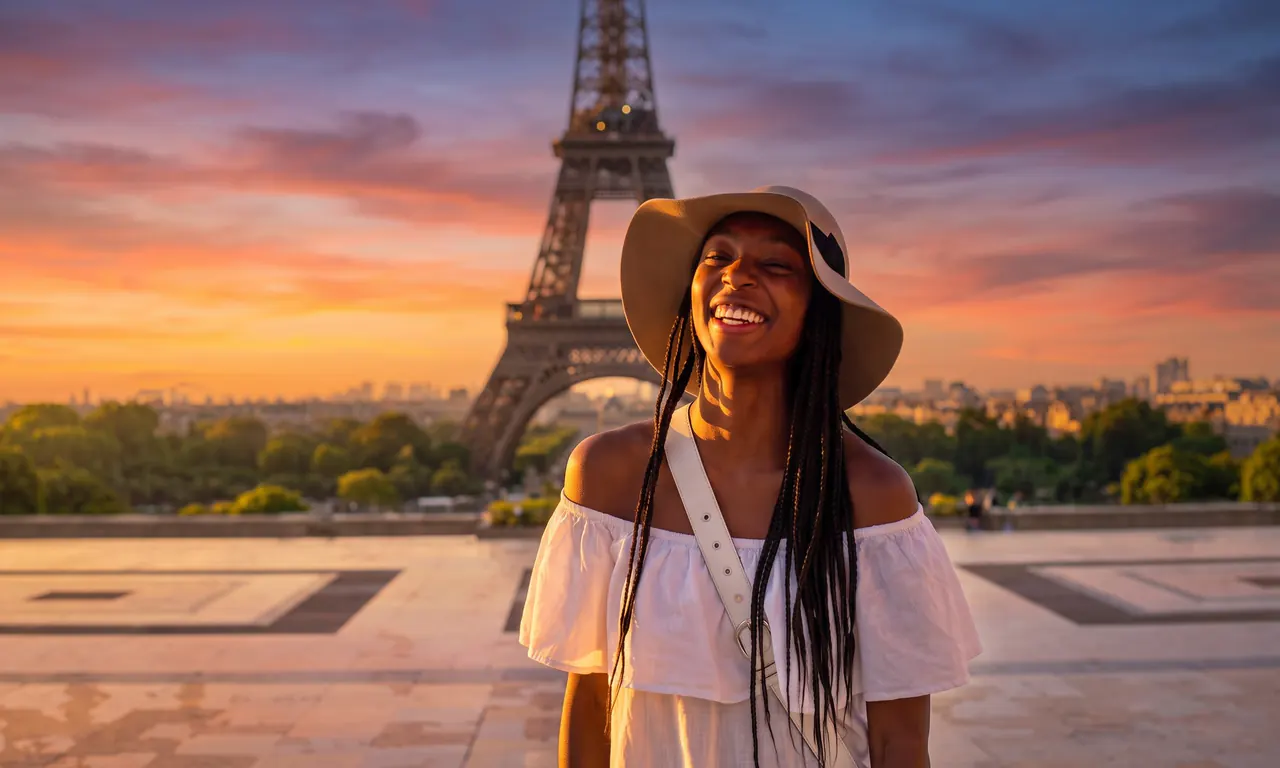
Describe the look you want, from realistic photography to illustration or from bright to warm tones, and prepare different versions for your content.